Microsoft’s solutions are fairly common among businesses, so there’s a fair chance that you utilize Microsoft Office 365, which gives you access to Microsoft’s cloud storage solution, OneDrive. Using this, your users are better able to share documents and collaborate on them… but what if you don’t want your users sharing company documents willy-nilly? Today, our tip will cover how to control sharing in OneDrive.
In OneDrive, a user can share a singular file or folder pretty easily. All they have to do is log in, right-click on the file/folder, and click Share.
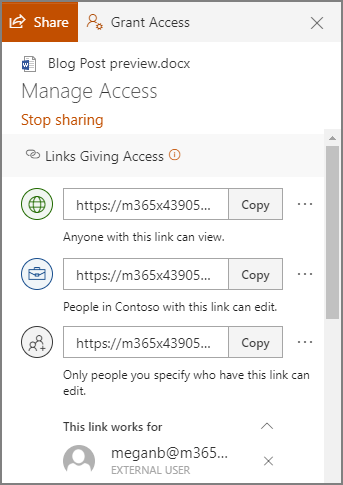
Sharing this way allows a user to share their content with one of their contacts, send it to an email address, or copy a shareable link and send it along through an instant message or, again, and email. Doing so gives the recipient access to make edits to it by default, but the sender can restrict them to read-only access if desired.
However, you probably don’t want to micromanage your entire team to make sure they are sharing files and folders with people actually authorized to receive them. Fortunately, by using the global settings of OneDrive, you can take control past the file/folder basis to control how a user can share documents.
Controlling a User’s File Sharing in OneDrive
Assuming that you have administrative access over your OneDrive account, sign in by visiting https://admin.microsoft.com/ before proceeding with the following steps:
- Look for Admin centers on the left side of your display. Click SharePoint.
- You should then be directed to the new SharePoint admin center. If you are brought to the old one, you can go to the new on by clicking on Open it now.
- Again, on the left side of the screen, find Policies and click on Sharing.
Doing so means that you have edited the global settings, applying your changes to all accounts. To manage settings on a case-by-case basis, access Users, Active Users, and select the individual who you are attempting to manage. You should find a OneDrive tab, with adjustable Sharing options.
With privacy and security being so critical for contemporary businesses, you need to make sure you are doing everything you can to maintain control of your company’s information. Our security experts can help - reach out to us at (410) 531-6727 to get started.




Comments